
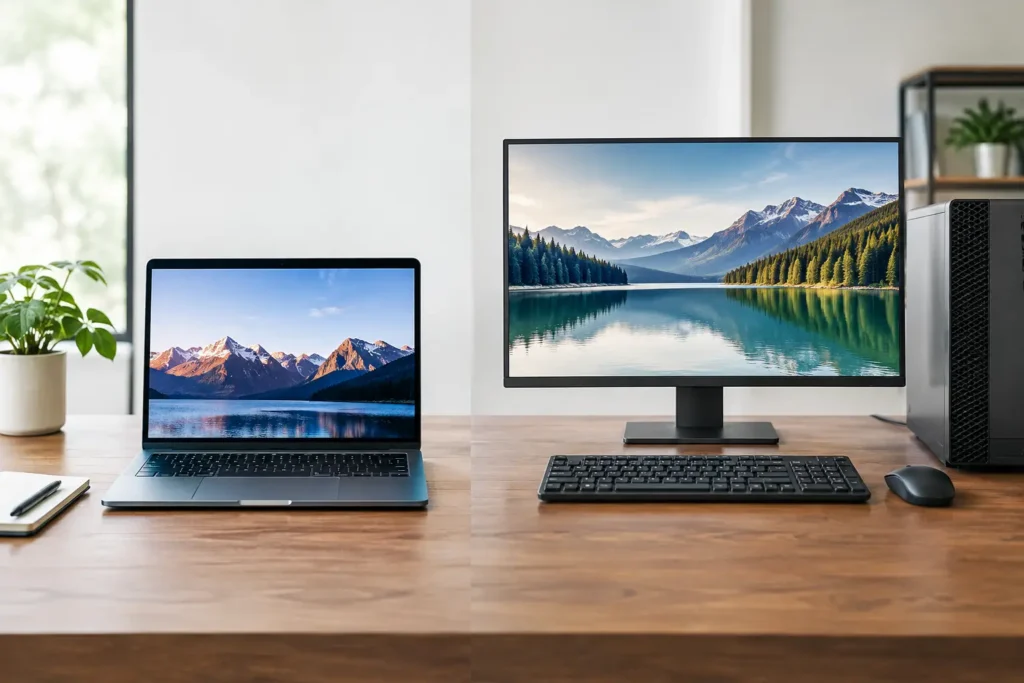
A missed render deadline, dropped livestream frame, or stalled CAD model rarely comes down to choosing the wrong brand name. More often, the system was selected for a broad category instead of the work it must do every day. The laptop versus desktop workstations decision is really a question of workflow: where the work happens, how long it runs, how much data it uses, and what failure or delay costs your team.
A powerful laptop can be the right professional tool. A desktop workstation can be the better long-term investment. Neither wins by default. The best choice is the one that removes bottlenecks without forcing you to compromise on mobility, reliability, or room to grow.
Start With the Work, Not the Form Factor
It is easy to compare processor names, graphics cards, memory totals, and storage capacities. Those specifications matter, but they do not tell the whole story. Two systems with similar-looking parts can behave very differently when one is encoding a long video, compiling an AI model, processing a large photogrammetry dataset, or driving multiple high-resolution displays.
Begin with the applications your team uses and the projects it handles at peak demand. An architect opening large Revit models, a video editor working with multicamera 4K or 8K footage, and a GIS analyst processing imagery may all need significant computing power, but their priorities are not identical. GPU memory, system memory, processor core count, storage speed, display connections, and certification requirements can each change the recommendation.
Also consider the work that happens around the main application. Where are project files stored? Does the system need to connect to shared storage? Will it run overnight renders or simulations? Is color-critical display work involved? Does a field team need the same project files and software environment as the office team? Clear answers make the laptop-versus-desktop question much less confusing.
When a Laptop Workstation Makes Sense
A laptop workstation earns its place when mobility is part of the job, not simply a nice feature. A photographer who edits on location, a production team moving between sets, an engineer visiting job sites, or a researcher presenting results in the field needs a system that travels with the work.
Modern mobile workstations can handle demanding applications remarkably well. With the right CPU, professional or high-performance GPU, memory, fast internal storage, and docking setup, they can edit video, work in CAD, run 3D scenes, produce audio, and support technical applications that would have required a desktop not long ago.
The advantage goes beyond carrying the computer from one place to another. A laptop keeps the same files, settings, plug-ins, and project environment in one system. That can reduce the friction of transferring work between an office desktop and a travel computer. For a one-person production business or a professional who works from several locations, that consistency is valuable.
A laptop can also become a capable desk-based workstation. Connect it to a dock, external displays, wired networking, keyboard, mouse, external storage, and audio or video peripherals, and it can function as the center of a home or office setup. At the end of the day, disconnect and take the same machine to the next location.
There are trade-offs. Laptop components work within tighter power and cooling limits than desktop components. Under long, sustained workloads such as rendering, simulation, encoding, or model training, a mobile system may reduce speeds to manage heat. Internal expansion is limited as well. Memory and storage may be upgradeable on some models, but the graphics hardware and processor generally are not.
Battery operation is another practical consideration. Heavy creative and technical work can drain a battery quickly, and full performance may require AC power. A laptop workstation is portable, but it should not be chosen on the assumption that demanding work will happen all day from a battery in the field.
When a Desktop Workstation Is the Better Tool
For users whose work stays primarily in one location, a desktop workstation usually delivers more performance per dollar and more flexibility over its useful life. Its larger chassis allows for stronger cooling, higher-wattage processors and graphics cards, more memory, additional internal drives, and a broader range of expansion options.
That matters when workloads run hard for hours. A 3D artist rendering scenes overnight, an editor exporting long-form projects, a scientist processing large datasets, or an AI developer training models benefits from a system designed to sustain high performance rather than deliver short bursts of it.
Desktops are also easier to tailor around specialized requirements. They can accommodate multiple GPUs when the software and workflow justify them, higher memory capacities for large models or datasets, fast scratch drives, large local project storage, capture cards, high-speed networking, and multiple displays. For many professional users, these options are not extras. They are the difference between a smooth workday and a system that constantly waits on data, storage, or processing.
Serviceability is another major advantage. A desktop can often receive more RAM, additional storage, a new graphics card, or replacement components without replacing the entire machine. That does not mean every desktop should be upgraded indefinitely – software requirements and platform changes still matter – but it gives organizations more control over lifecycle planning.
The obvious limitation is that it stays put. A desktop workstation is not the answer for a professional who must regularly create, review, or present work away from the office. Remote access can help in some cases, but it depends on reliable internet, security planning, and realistic expectations about file transfer and interactive performance.
Performance Is More Than a Benchmark Score
A benchmark can be useful, but it is not a guarantee that a system fits your work. A score may reflect a short test that does not resemble the sustained load of a real render, the complexity of a production timeline, or the memory demands of a technical project.
Cooling is a good example. Desktop workstations generally have more airflow and larger cooling hardware, which helps them maintain performance during long tasks. A well-configured laptop can still perform very well, but it has less physical room to move heat away from the processor and GPU.
Memory is another frequent source of frustration. When a system runs out of RAM, it begins relying more heavily on storage, which can slow down active projects. Video editors, 3D artists, GIS professionals, engineers, researchers, and AI users often benefit from more memory than a general office computer needs. The right amount depends on project scale, application behavior, and how many programs run at the same time.
Storage deserves the same attention. Fast internal NVMe storage can improve application responsiveness and project performance, while separate project, cache, scratch, archive, and backup locations can keep data moving efficiently. A large internal drive is not a backup plan. If the work matters, data protection needs its own design.
The Real Cost of Mobility and Expandability
The purchase price is only one part of the decision. A laptop may cost more than a desktop with comparable-looking specifications because it packs high-performance components into a compact, portable design. A desktop may have a lower initial cost for equivalent performance, then provide a longer path for expansion.
On the other hand, buying both a desktop and a travel laptop can create its own costs: duplicated software, duplicated peripherals, file synchronization, two systems to maintain, and the risk that project versions fall out of step. For some users, one properly equipped laptop with an office dock is more practical than managing two computers.
For a studio or department, standardization can be just as valuable as raw speed. Matching workstations can simplify deployment, troubleshooting, shared project workflows, spare-part planning, and support. The right choice may be a mix: desktop workstations for full-time production, mobile workstations for field staff, and shared storage that keeps the team working from the right files.
Reliability Depends on the Whole System
A workstation should be designed as a complete working environment, not a pile of premium parts. Software compatibility, driver selection, thermal design, power delivery, storage layout, network connectivity, backup strategy, and testing all affect the result.
This is particularly true for mission-critical work. Government teams may need NDAA-compliant options. A video production environment may require reliable capture hardware and specific display connections. A research lab may need memory capacity, high-speed networking, or storage designed around large datasets. An off-the-shelf configuration can look appealing until one overlooked requirement interrupts the workflow.
That is why a consultation should include the applications, file types, project sizes, peripherals, storage requirements, and expected growth. Sandia Computers builds and tests systems around those details, then remains available when questions arise after delivery. No guessing, and no being left alone with a support ticket when work is waiting.
Make the Choice Based on Where Work Must Happen
Choose a laptop workstation when your work must travel and you need a single, consistent system across locations. Choose a desktop workstation when sustained performance, expansion, serviceability, and high-capacity configurations are central to the job. If both are true, a desktop for primary production and a laptop for review, travel, or field collection may be the most sensible arrangement.
Before making the purchase, put one real project on the table: the largest edit, model, dataset, render, or deployment you expect to handle in the next few years. A system planned around that work gives your team room to produce confidently instead of working around the computer.