
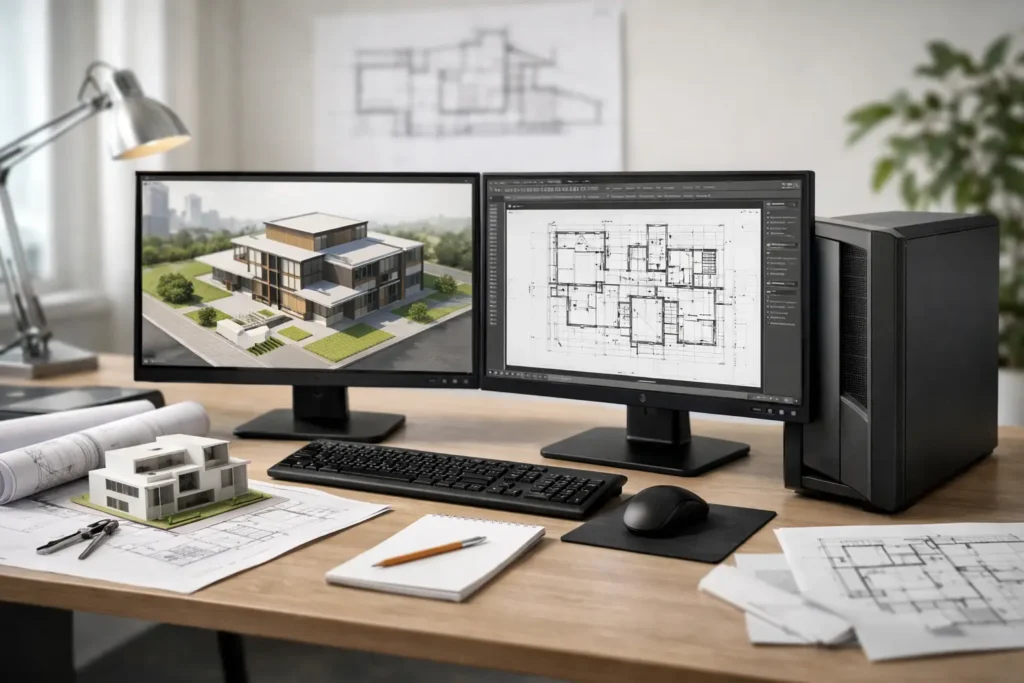
A model can feel perfectly manageable at 9 a.m. and become painfully slow by midafternoon, once linked files, high-resolution textures, point clouds, and a rendering window are all open. That is why choosing a CAD workstation for architects should begin with the work on your screen, not a spec sheet full of unfamiliar parts. The right system keeps design decisions moving. The wrong one turns routine revisions, coordination, and client deadlines into waiting.
Architectural workflows rarely rely on one application or one kind of file. You may draft in AutoCAD, develop a building model in Revit or Archicad, shape concepts in Rhino or SketchUp, coordinate consultant files, and produce visuals with Enscape, Twinmotion, Lumion, V-Ray, or another renderer. Each step puts pressure on hardware differently. No guessing means looking at the complete workflow before deciding what belongs in the workstation.
Start With How Your Firm Actually Works
The most useful question is not, “What is the best CAD computer?” It is, “What causes delays in our work?” For a small residential practice, that may be slow 3D views and sluggish render previews. For a commercial architecture team, it may be large BIM models, several linked disciplines, shared project storage, and multiple people working against the same deadline.
File size matters, but it is not the whole story. A modest project can still tax a system when it includes imported survey data, dense site context, detailed families, large PDFs, or real-time visualization. A larger project may run reasonably well if the model is well managed and the workstation is matched to the software. The practical goal is to identify the heaviest normal workday, not just the occasional final rendering.
BIM and Documentation Need Responsive Single-Core Speed
Many common actions in CAD and BIM software rely heavily on fast performance from a single CPU core. Opening views, editing elements, navigating a model, and working through documentation often benefit more from a processor with strong per-core speed than from the highest possible core count.
That does not mean more cores are pointless. They can help when you render, export, calculate, run multiple applications, or work in software that is designed to spread tasks across many cores. But an architecture workstation built only around maximum core count can feel less responsive during the design work that fills most of the day. The best processor choice balances quick interactive work with the parallel processing your office actually uses.
Visualization Changes the GPU Conversation
If your work ends with line drawings and occasional shaded views, graphics demands may be moderate. If you regularly use real-time rendering, virtual reality, animation, complex materials, or high-resolution walkthroughs, the GPU becomes central to the experience.
A capable professional GPU can improve viewport performance, accelerate supported rendering tasks, and provide the video memory needed for detailed scenes. Video memory, often listed as VRAM, deserves close attention. A graphics card can have plenty of processing power but still struggle if a large scene, textures, and display requirements exceed available VRAM. When that happens, performance can drop sharply or the application may become unstable.
Gaming-style graphics cards can be an appropriate fit for some architectural visualization workflows, particularly when the software supports them well and budget is a priority. Professional graphics options may make more sense where driver certification, application compatibility, specialized features, or predictable deployment across a team matter most. There is no automatic winner. The software, the size of the scenes, and the cost of downtime should guide the decision.
The Hardware Priorities in a CAD Workstation for Architects
A well-designed workstation is a system, not a pile of high-end parts. The CPU, GPU, memory, storage, cooling, power supply, and operating environment need to work together without creating a weak link.
Memory Should Match the Model, Not the Minimum Requirement
RAM is the workspace your applications use while projects are open. When there is not enough, the system relies more heavily on storage as temporary memory, and that is where a workstation can start to feel unpredictable. View changes take longer, applications pause, and switching between a BIM model, browser, PDF set, email, and rendering tool becomes frustrating.
For lighter 2D CAD and smaller models, 32GB may be practical. For serious BIM, multitasking, and visualization, 64GB is often a more comfortable starting point. Larger projects, extensive linked models, point clouds, rendering, and several demanding applications may justify 128GB or more. Adding memory later is sometimes possible, but planning for likely growth is usually less disruptive than discovering a limitation in the middle of an active project.
Fast Storage Helps Every Day
An NVMe solid-state drive gives the operating system, applications, project files, and cache data a fast place to work. It improves startup times, file loading, saves, exports, and the general responsiveness that makes a workstation feel ready instead of reluctant.
Capacity is just as important as speed. Architectural projects accumulate local copies, linked files, render assets, texture libraries, point clouds, exports, and archive material quickly. A sensible configuration often separates the operating system and active applications from project data or cache workloads when the workflow warrants it. That organization can make maintenance easier and reduce competition between heavy tasks.
Local storage is not a replacement for a proper backup plan. If project data lives on a server or NAS, network performance and data protection become part of the workstation conversation. A fast desktop cannot overcome a slow connection to the files everyone needs, and no workstation should be treated as the only copy of valuable project data.
Cooling and Power Are Performance Components
Architecture software can keep a CPU and GPU under load for hours during rendering, exports, simulation, or visualization. Inadequate cooling may cause components to reduce speed to protect themselves. An undersized or low-quality power supply can create instability that looks like a software problem.
These details are easy to overlook because they do not appear in a flashy performance chart. They matter because reliable output matters. A workstation should be built in a case that can manage heat, with quality power delivery and room for serviceability where possible. Quiet operation also has value in a design studio, especially when the machine sits beside the person using it all day.
Do Not Buy for Rendering Alone
Rendering is often the most dramatic workload, so it is easy to overbuild around it. Before allocating a large share of the budget to extra CPU cores or a top-tier GPU, consider how rendering happens in your practice. Is it a daily, billable activity? Is it done in real time with clients? Do you render stills overnight? Is it handled by a dedicated visualization artist or a separate render node?
If rendering is occasional, a balanced workstation may deliver better value by prioritizing responsive modeling, sufficient RAM, fast storage, and a capable GPU. If visualization is a core service, then investing more heavily in graphics performance and VRAM can be justified. If long CPU renders are routine, higher core counts may pay for themselves. The answer depends on where time is spent and where delays cost the business money.
Desktop or Mobile Workstation?
A desktop workstation generally provides the best performance per dollar, easier expansion, better cooling, and a broader choice of GPUs and storage. For architects who work mostly from one office, it is often the most practical choice.
A mobile workstation is appropriate when site visits, client presentations, travel, or frequent work between locations are part of the job. The trade-off is that laptop components operate within tighter power and thermal limits. A well-configured laptop can be highly capable, but it should be selected with realistic expectations about sustained rendering and large visualization sessions. Many firms benefit from a powerful desktop at the main workspace and a laptop that supports meetings, field work, and remote access.
Plan for Support, Growth, and the Next Project
The least expensive configuration on paper is not always the least expensive to own. A workstation that struggles under the next project, cannot accept additional memory, or has no clear support path creates disruption when the team can least afford it. Architecture deadlines do not leave much room for troubleshooting component compatibility or chasing different manufacturers for help.
A purpose-built workstation should be tested around the intended configuration and explained in plain language. You should know why the processor was selected, how much memory the workflow needs, whether the GPU suits your rendering software, and where your projects and backups will live. That clarity is especially useful for firms standardizing several systems, government and education teams with compliance needs, or independent architects who cannot spare time to become their own IT department.
At Sandia Computers, the starting point is the same: understand the applications, project files, rendering needs, storage environment, and budget before building and testing a system. The goal is a machine that supports the way you design now and gives you a sensible path forward when the next demanding project arrives.
Your workstation should disappear into the background when you are reviewing a detail, coordinating a model, or presenting a design. If it is constantly asking for attention, it is time to have the workflow conversation before another deadline makes the decision for you.