
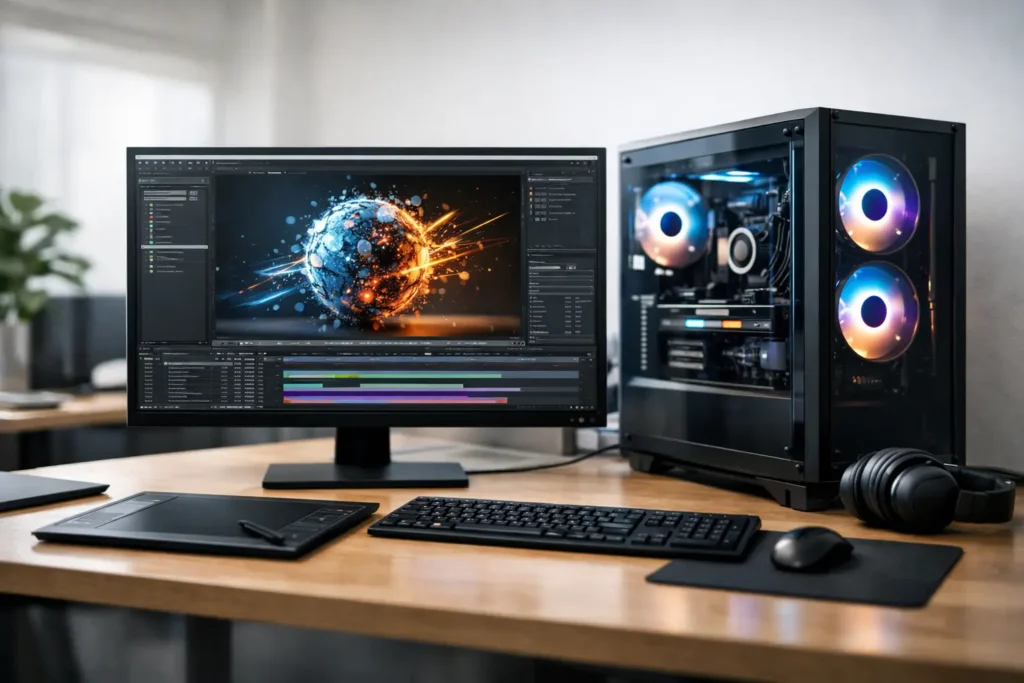
A motion graphics project can look simple on the timeline and still punish the wrong computer. A short animated title sequence may involve high-resolution footage, layered effects, expressions, precomps, 3D elements, plugins, and hours of cached previews. The best computer for motion graphics is not simply the one with the highest advertised specs. It is the system that keeps your actual applications responsive, previews moving, renders predictable, and project files protected.
That distinction matters because motion graphics is not one workload. An After Effects artist building broadcast graphics has different needs than a Cinema 4D designer rendering product scenes, or a small studio working across Premiere Pro, Photoshop, Illustrator, Blender, and shared storage. No guessing is required when the computer is designed around the work.
What Makes the Best Computer for Motion Graphics?
Motion graphics performance depends on how your software divides work among the processor, graphics card, memory, and storage. A weak link in any one of those areas can make an otherwise expensive machine feel slow.
After Effects, for example, benefits from fast processor cores, substantial RAM, and very fast storage for its disk cache. It can use multiple cores, but it does not always reward buying the processor with the largest possible core count. Many active compositions, expressions, and interface tasks still benefit from strong per-core speed. A processor selected for 3D rendering may not be the best choice for an editor spending most of the day inside After Effects.
GPU requirements also depend on the application. GPU acceleration can improve effects, color work, playback, and 3D viewport performance. But a graphics card is not a substitute for adequate memory or a fast cache drive. For GPU-based 3D renderers, compositing with demanding effects, or work involving large textures, GPU memory becomes especially important.
The right system starts with a practical question: where do you lose time now? Is it waiting for previews, slow final renders, choppy playback, crashes during large compositions, or repeatedly moving media between full drives? The answer points to the component that deserves the priority.
Start With Your Core Applications
Before comparing specifications, list the applications you use in a normal project. Include plugins, render engines, codecs, and any connected workflow tools. A computer built for After Effects and Premiere Pro may need a different balance than one intended for DaVinci Resolve, Cinema 4D, Redshift, Blender, Unreal Engine, or Houdini.
Adobe-centered workflows often need a balanced system with high processor speed, plenty of RAM, a capable NVIDIA or AMD GPU where application support makes sense, and multiple NVMe solid-state drives. Artists using GPU rendering may put more of the budget toward a high-end GPU and sufficient VRAM. Teams rendering on the CPU may benefit from additional processor cores, although they should still avoid sacrificing the speed that keeps daily creative work responsive.
Operating system requirements belong in this discussion as well. Some studios depend on macOS-specific tools or established Apple-based workflows. Others need Windows-only software, specialized GPU options, greater internal expansion, or compatibility with existing storage and peripherals. There is no universal winner between platforms. The best choice is the one that supports the applications and handoffs your team already relies on.
Processor: Fast Workstations Beat Spec Sheet Guessing
For most motion designers, a modern high-performance desktop processor with strong single-core performance is the sensible starting point. It helps with timeline responsiveness, animation work, previews, and everyday use across several creative applications.
More cores help when you render frequently, use multi-frame rendering, export long-form content, or run CPU-intensive 3D work. However, a very high-core-count processor can carry a trade-off: it may cost more while offering lower peak clock speeds than a workstation designed around fewer, faster cores. That is why “more cores” is not automatically better.
A practical motion graphics workstation should also provide enough PCIe lanes and expansion options for the GPU, fast storage, capture cards, and high-speed networking when needed. These details are easy to miss in a retail listing and frustrating to correct later.
Memory: 32GB Is a Floor, Not a Goal
RAM is one of the most common causes of slowdowns in motion graphics. When the system runs short on available memory, it begins relying more heavily on storage, which can lead to sluggish previews and less stable multitasking.
For lighter 1080p projects and basic animation, 32GB can be workable. For serious After Effects work, 64GB is a more comfortable starting point. Artists handling 4K or higher-resolution comps, large Photoshop files, complex scenes, multiple Adobe applications, or 3D assets should often consider 128GB. Some specialized projects need more, but buying memory should be based on the real size and complexity of the work rather than fear alone.
Memory capacity matters, but compatibility and stability matter too. A workstation should be tested with the selected processor and motherboard, particularly when using large memory configurations.
Choose a GPU for the Work You Actually Render
The graphics card should match both your software and your scene complexity. For many 2D motion graphics workflows, a midrange professional or high-performance consumer GPU can provide excellent results. Spending heavily on the most powerful GPU available may not improve After Effects performance as much as adding RAM or upgrading the cache drive.
For 3D motion design, GPU-rendered scenes, virtual production assets, advanced effects, or Resolve-heavy finishing, the GPU moves much closer to the center of the configuration. In these cases, prioritize both compute performance and VRAM. A fast card with too little VRAM can run into limits when scenes use detailed geometry, high-resolution textures, multiple displays, or large compositing workloads.
NVIDIA GPUs are frequently selected for creative work because many applications and render engines are optimized around CUDA and related technologies. That does not make every NVIDIA card the right answer. GPU choice should account for supported software, display needs, power requirements, heat output, and the upgrade path of the workstation.
Storage Is Part of Performance, Not an Afterthought
One drive for Windows, applications, source media, cache, renders, and archives is a compromise that eventually shows up in your workday. Motion graphics workflows benefit from separating those jobs.
A strong configuration typically uses a fast NVMe drive for the operating system and applications, a separate high-speed NVMe drive for active projects and media, and another fast drive dedicated to cache and scratch files. This gives applications such as After Effects room to write preview data without competing constantly with the operating system or footage reads.
Long-term storage is a separate decision. Finished projects, source footage, and reusable assets may belong on large local drives, a NAS appliance, or managed shared storage. If the project files generate revenue or support a client deadline, backup should not be treated as optional. A fast workstation is only helpful if the work is still there tomorrow.
Desktop or Laptop for Motion Graphics?
A desktop workstation is usually the best value for demanding motion graphics work. It can support stronger cooling, larger GPUs, more memory, more internal drives, and easier future upgrades. It is the better fit for a dedicated studio, frequent rendering, and projects that continue growing in complexity.
A mobile workstation makes sense when you edit on location, travel between client sites, teach, or need one primary computer for several work environments. Modern laptops can handle substantial creative workloads, but they have unavoidable limits around sustained heat, internal expansion, and upgradeability. A laptop should be selected for the workload you need to complete away from the desk, not compared unfairly to a full tower workstation.
If mobility is essential, plan the complete setup: external displays, fast portable storage, a dock, dependable backup, and enough power to render without living at the edge of the machine’s limits.
Reliability Is a Creative Requirement
Missed deadlines rarely come from a benchmark score. They come from unstable drivers, undersized power supplies, overheated components, incompatible memory, full cache drives, and systems that were never tested under the load they will actually face.
For a professional motion graphics computer, component quality and integration are as important as headline specifications. Proper cooling helps the processor and GPU maintain performance during long renders. A quality power supply supports stable operation and future expansion. Validated drivers and a clean operating system configuration reduce the chance that an update or plugin turns into lost production time.
This is also where a purpose-built system earns its value. Sandia Computers builds and tests workstations around the applications, assets, storage needs, and performance priorities behind each customer’s workflow, then remains available when questions arise after delivery.
A Better Way to Set Your Budget
Do not begin with a fixed component list copied from someone else’s recommendation. Begin with the projects you take on now and the work you expect to accept over the next few years. Consider footage resolution, typical composition length, 2D versus 3D work, render deadlines, plugin use, number of displays, local versus shared storage, and whether the machine needs to travel.
For many independent designers, the best investment is a balanced desktop with 64GB of RAM, fast NVMe storage, and a GPU appropriate for the renderer they use. For a studio producing complex 3D scenes or high-resolution client work, more memory, more GPU VRAM, faster networking, and protected shared storage may deliver more value than simply upgrading one component.
The right computer should remove friction from the work you are paid to do. When a system is selected around your software and your deadlines, you spend less time decoding specifications and more time making the next frame better.