
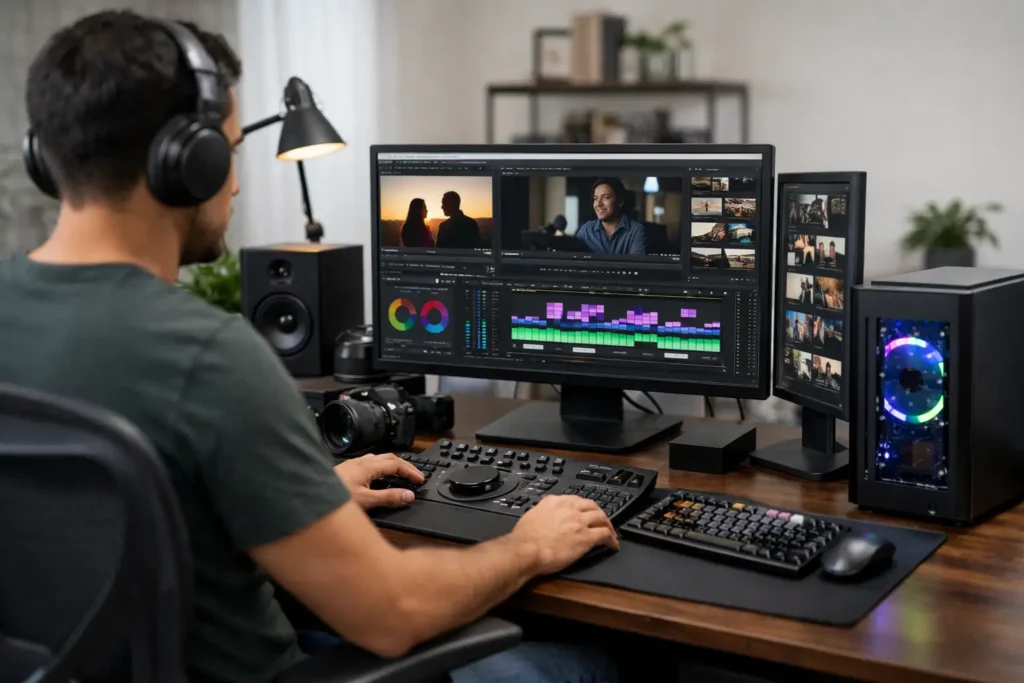
A missed client deadline rarely comes down to a lack of editing skill. More often, it is the playback that stutters, the timeline that takes seconds to respond, the export that ties up a machine all afternoon, or the drive that runs out of room midway through a project. A properly configured video editing workstation is meant to remove those interruptions so you can spend more time making decisions and less time waiting on hardware.
The right system is not simply the one with the most expensive processor or graphics card. It is the one built around your editing application, the codecs you receive, the resolution and frame rates you deliver, and how much work needs to happen at once. A solo editor cutting 4K interviews has different needs than a production team working with multicam 6K footage, motion graphics, color grading, and shared storage.
Start With the Work, Not the Spec Sheet
A workstation recommendation should begin with a few practical questions. Which applications are central to the job? Adobe Premiere Pro, DaVinci Resolve, Avid Media Composer, Final Cut Pro, After Effects, and Blender do not lean on hardware in exactly the same way. The same is true for plug-ins, AI-assisted tools, camera formats, and export requirements.
Footage matters just as much as software. Highly compressed H.264 and H.265 clips can be demanding to decode, especially at 4K or higher resolutions. RAW, log, ProRes, RED, BRAW, and multicam projects each create their own mix of CPU, GPU, memory, and storage demands. A computer that feels quick with a short 1080p project may struggle badly once a project includes four camera angles, noise reduction, animated titles, and a large cache.
It also helps to be honest about where time is lost now. If basic timeline playback is rough, the solution may be faster media storage or a better codec workflow. If GPU effects, color tools, or AI masking are slow, graphics performance may be the constraint. If large After Effects compositions or long-form projects cause crashes, memory capacity may be the first thing to address. No guessing is necessary when the actual workflow is clear.
The Core Parts of a Video Editing Workstation
Processor: Keep the Timeline Moving
The CPU handles many of the tasks that make editing feel responsive: decoding certain formats, preparing previews, running background processes, exporting, and coordinating the system as a whole. A fast processor with strong per-core performance is valuable for editors who need a responsive interface and quick playback. More cores can also help with rendering and exports, particularly when multiple applications are open.
But more cores are not automatically better. An editor working primarily in Premiere Pro may benefit more from a balanced high-performance CPU than from an extreme core-count processor that consumes budget needed for storage, memory, or a stronger GPU. The best choice depends on the software and the work being done, not a single benchmark score.
Graphics Card: Important, but Not a Standalone Answer
Modern editing tools use the GPU for color correction, visual effects, GPU-accelerated encoding, playback, AI features, and rendering. DaVinci Resolve is especially dependent on graphics capability, while Premiere Pro and After Effects can benefit substantially from the right GPU in supported workflows.
Video memory, or VRAM, deserves attention. Higher-resolution timelines, complex grades, noise reduction, 3D effects, and large compositions can exceed the capacity of a modest card. When that happens, performance may drop sharply or an application may become unstable. For 4K editing, a capable GPU with adequate VRAM is often a wise investment. For 6K, 8K, intensive color work, or GPU-based effects, it becomes even more important.
Still, a top-tier GPU cannot compensate for insufficient RAM or slow drives. A balanced system is faster in real projects than one expensive part surrounded by bottlenecks.
Memory: Give Big Projects Room to Work
Memory is where many workstations are undersized. Editing software, background applications, browser-based review tools, proxy generation, audio tools, and motion graphics can all compete for RAM. Once the system runs short, it starts relying more heavily on storage, and responsiveness suffers.
For lighter HD and straightforward 4K projects, 32GB may be workable. For professional 4K editing, 64GB is often a more comfortable starting point. Editors who use After Effects, work with long timelines, handle high-resolution media, or keep several demanding applications open may need 128GB or more. The correct amount depends on the project, but extra memory can preserve the smooth working experience that makes deadlines manageable.
Storage: Separate the Jobs
Fast storage is not just about booting the computer quickly. It affects ingest, cache generation, proxy creation, timeline playback, renders, and exports. A good editing workstation usually separates storage by purpose rather than placing everything on one drive.
A fast SSD can handle the operating system and applications, while another high-speed SSD serves as the active project and media drive. A dedicated cache or scratch drive can further reduce contention on larger projects. Finished jobs and less active media belong on larger-capacity storage designed for archive and backup, not on the same drive carrying the active edit.
Capacity planning matters, too. Video files multiply quickly. A workstation should account for source footage, proxies, project files, cache, previews, exports, duplicate working files, and available headroom. Buying only enough storage for the footage you have today creates a problem you will meet sooner than expected.
Match the System to Your Editing Environment
The workstation itself is only part of the production setup. Editors may need SDI or HDMI monitoring, capture cards, high-speed card readers, audio interfaces, calibrated displays, external RAID storage, 10GbE networking, or shared storage for a team. These requirements affect expansion slots, ports, power delivery, chassis size, and network configuration.
For a one-person studio, quiet operation may be a major priority. For a production department, reliability under sustained loads, remote management, standardization, and a clear support path may matter more. Government and education teams may also need NDAA-compliant options and documentation that consumer systems do not provide.
This is why a laptop, desktop, tower workstation, or networked storage solution should not be selected in isolation. A fast workstation connected to underperforming shared storage can still leave an entire team waiting. Likewise, a large storage system without a backup plan can turn one hardware failure into a serious business interruption.
Plan for Playback, Not Just Export Benchmarks
Export times are easy to measure, which is why they receive so much attention. But an editor experiences the machine all day through playback, scrubbing, switching between applications, generating proxies, loading bins, and applying effects. A system that shaves five minutes off an export but remains frustrating in the timeline may not improve the workday very much.
Consider the heaviest normal project rather than the simplest recent one. If a system must support multicam interviews, 4K or 6K footage, client review versions, color work, and occasional motion graphics, configure for that reality. If the workload is expected to grow, leave practical room for more memory, storage, additional GPUs where appropriate, or faster networking.
There is a trade-off here. Building far beyond the needs of the workflow can waste budget. Building too close to the minimum can shorten the useful life of the system and introduce avoidable delays. The goal is not excess. It is dependable headroom.
Why Validation and Support Matter
Professional editing work cannot stop because a driver update broke a capture card or an application behaves differently than expected with a new GPU. Parts compatibility is more than a list of connectors. It includes firmware, drivers, thermals, power requirements, application behavior, and testing under the kind of sustained loads video work creates.
That is where a purpose-built approach pays off. Sandia Computers designs systems around the software, footage, storage needs, and performance targets of the person or team using them, then builds and tests them in-house before delivery. The result is plain-language guidance before the purchase and a team that actually shows up after it.
A video editing workstation should feel like a dependable part of the creative process, not another project waiting for your attention. When the hardware fits the work, the timeline stays where it belongs: in front of you, moving forward.