
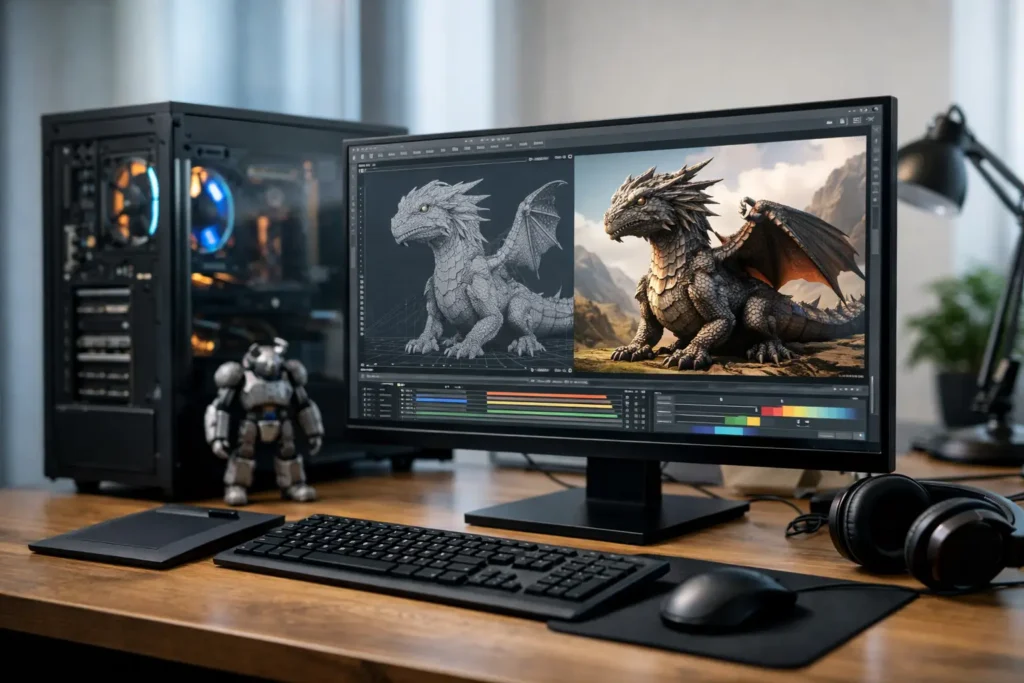
A missed render deadline rarely comes down to one bad setting. More often, it is a 3D animation workstation that was selected around a headline spec instead of the real work: the scenes being built, the renderer in use, the simulation complexity, and the time available to deliver.
For a 3D artist or studio, the right system is not necessarily the most expensive one. It is the machine that keeps the viewport responsive, handles large assets without constant slowdowns, renders efficiently, and stays dependable when a project becomes more demanding than expected. That requires looking at the complete workflow, not shopping for a processor or graphics card in isolation.
Start With the Work, Not the Parts List
3D animation covers a wide range of workloads. A character animator working in Maya may spend most of the day in interactive viewports, rigging, and playback. A motion designer using Cinema 4D may need quick previews and fast final frames. An architectural visualization team may handle huge scenes, high-resolution textures, and GPU rendering. A Blender artist may move between modeling, simulation, compositing, and rendering in the same project.
Those differences matter because software does not use hardware the same way. Some applications benefit most from fast CPU cores for modeling, animation playback, and certain simulations. Others can shift much of the rendering load to a capable GPU. Many real production workflows need both.
Before choosing hardware, identify the applications and render engines your team uses now, along with the ones you expect to use over the next few years. Include plug-ins, simulation tools, compositing software, virtual production tools, and asset-management requirements. A workstation built for CPU-based rendering can look very different from one intended for GPU rendering with Redshift, Octane, V-Ray GPU, or Blender Cycles.
CPU: Fast Interactive Work Versus More Render Throughput
The processor affects far more than final rendering. It influences how responsive a system feels while opening files, calculating modifiers, running simulations, exporting content, and working through an animation timeline.
For artists who spend most of their time modeling, animating, texturing, or working in a single interactive application, higher clock speeds and strong per-core performance often matter more than simply having the most CPU cores available. Many viewport and animation tasks cannot fully spread their work across dozens of cores.
For CPU rendering, simulation-heavy projects, batch processing, or rendering several jobs at once, more cores can create meaningful time savings. The trade-off is that a high-core-count processor may not offer the same top-end interactive speed as a processor designed around fewer, faster cores. There is no universal winner. It depends on whether the workstation spends more hours creating scenes or calculating them.
A practical approach is to measure the workday. If an artist waits on CPU renders for several hours each day, render throughput deserves a larger share of the budget. If the team is losing momentum because scenes feel sluggish while they are being built, prioritize responsive interactive performance first.
GPU: Match the Card to the Renderer and Scene Size
The graphics card is central to modern 3D work, but “buy the fastest GPU” is not a complete plan. GPU selection should account for the render engine, the display setup, the amount of VRAM required, and whether the system will be used for AI-assisted tools, real-time visualization, or virtual production.
VRAM is especially important. It stores the scene data the GPU needs to render: geometry, textures, lighting information, and more. When a scene exceeds available VRAM, performance can drop sharply or the render may fail altogether. High-resolution product visualizations, large architectural scenes, detailed characters, and complex environments can all push memory requirements higher than expected.
For simpler scenes and animation work, a midrange professional or high-end consumer GPU may provide excellent results. For large GPU-rendered scenes, multiple displays, real-time engines, or demanding visual effects work, additional VRAM can be the better investment. A slightly faster card with too little memory can become a frustrating limitation long before the system is otherwise outdated.
Compatibility also matters. Some renderers, plug-ins, and production pipelines have specific preferences for GPU architecture, drivers, or vendor ecosystems. The correct choice is the card that works reliably with your tools, not the one with the most impressive marketing number.
Memory: Give Complex Projects Room to Breathe
System RAM holds active project data while you work. When there is not enough, the workstation starts relying heavily on storage as temporary memory. That is when artists see slow scene changes, delayed previews, stuttering applications, and systems that become difficult to use during multitasking.
The right memory capacity depends on asset size and the number of programs open at once. An artist working on modest scenes in one application may be well served with a practical baseline configuration. A studio working with high-resolution textures, simulations, large caches, multiple 3D applications, compositing, and browser-based review tools needs substantially more headroom.
Memory should be planned for the project after the next project, not just the smallest scene currently on the schedule. It is usually easier and less expensive to add RAM later when the platform has open slots, but that option should be considered during the initial build. A system filled with smaller memory modules may limit future upgrades.
Storage: Fast Projects, Protected Assets
Storage performance affects every stage of 3D production. Fast solid-state storage improves application launch times, project loading, cache generation, texture access, simulation playback, and export work. But speed is only part of the storage conversation.
A well-planned workstation commonly separates the operating system and applications from active project files, caches, and long-term archives. This makes it easier to keep working data organized and prevents one full drive from creating avoidable problems elsewhere in the system.
For many artists, a fast NVMe SSD for the operating system and applications plus a separate high-speed drive for active projects is a sensible starting point. Larger productions may need dedicated scratch storage for caches and simulations, shared storage for team assets, and a separate backup strategy. A workstation with plenty of local storage is not the same as a protected workflow.
If your work is billable, irreplaceable, or tied to a client deadline, backups should be part of the system discussion from the beginning. That can mean local backup, network storage, off-site protection, or a combination based on how much data your team creates and how quickly it must be restored.
Cooling, Power, and Reliability Are Performance Decisions
A workstation can have excellent components and still disappoint if it cannot keep them operating consistently under load. Long renders, simulation calculations, and overnight exports place sustained demands on cooling and power delivery. Poor thermal design can cause components to reduce speed to protect themselves, extending jobs that should have finished sooner.
This is why purpose-built workstations deserve more attention than a collection of parts. Case airflow, CPU cooling, graphics card clearance, power supply capacity, cable routing, and component compatibility all affect long-term stability. They also affect noise, which matters in a home studio, edit suite, classroom, or shared office.
Reliability becomes even more important when the system is supporting a team. A workstation that stops responding during a client review or fails midway through a multi-day render creates a cost that does not show up on a specification sheet. Testing the complete configuration before delivery helps reduce those risks.
Plan for the Workflow Around the Workstation
The workstation itself may be only one part of the production environment. Consider how it will connect to color-accurate displays, pen tablets, reference monitors, capture devices, high-speed networking, shared storage, render nodes, and backup systems. These needs can affect port selection, expansion capacity, network adapters, storage design, and the size of the chassis.
Remote access is another common consideration. Some studios need artists to connect securely to powerful systems from home, while others need to move projects between locations without risking file version conflicts. The best approach depends on data size, security requirements, internet connectivity, and whether the work must remain on-site.
For government, education, and regulated organizations, procurement requirements can also narrow the hardware choices. NDAA-compliant options and documented configurations may be necessary, especially when the workstation will be deployed as part of a larger technical environment.
A Better Way to Spec a 3D Animation Workstation
The most useful workstation recommendation starts with questions: Which 3D applications and render engines are in use? Are renders CPU-based, GPU-based, or mixed? How large are typical scenes? Does the work involve simulations, photogrammetry, real-time visualization, or AI tools? Will files live locally, on a NAS, or on shared production storage? And what happens if the system is down for a day?
Those answers create a clearer hardware plan than any generic “best workstation” list. They also expose where the budget should go. One team may benefit most from more GPU memory. Another may need faster CPU performance, more RAM, a larger cache drive, or storage infrastructure that keeps several artists working from the same assets.
Sandia Computers builds and tests systems around those workflow details, with plain-language guidance before the purchase and US-based lifetime support after delivery. The goal is no guessing and no expensive compromises hidden behind a preconfigured model.
A good 3D animation workstation should fade into the background while the work takes center stage. When your scenes, render engine, assets, and deadlines are understood first, the hardware can be selected to support the way you actually create.