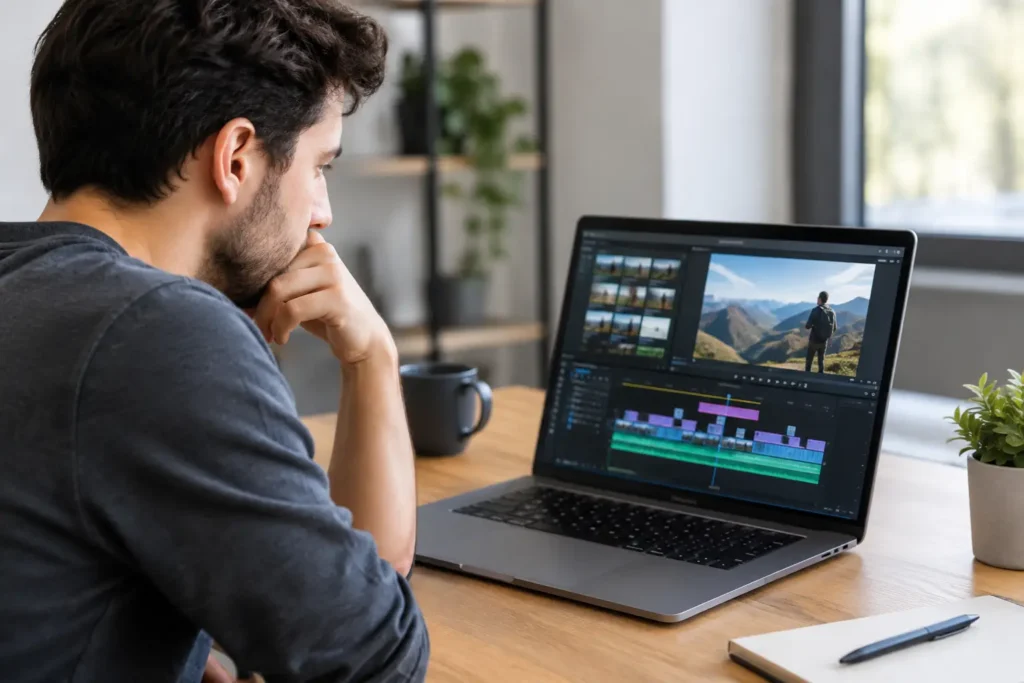
A timeline that stutters at the exact moment you need to make a cut can turn a simple edit into a long day. If you are asking, why does video editing lag, the answer is rarely just that your computer is “too slow.” Lag usually comes from a mismatch between your footage, your editing software, your project setup, and the hardware doing the work.
That distinction matters. Buying the most expensive part available may not solve the problem if the real limitation is a slow media drive, highly compressed camera files, too little memory, or an effect that is overwhelming the GPU. The goal is to identify the bottleneck, then fix the part of the workflow that is holding everything else back.
Why Does Video Editing Lag During Playback?
Editing software has to do far more than play a video file. As you scrub, cut, and preview a timeline, it may be decoding footage, reading multiple media streams, applying color corrections and effects, mixing audio, caching frames, and sending the result to your display. A project can feel responsive in one moment and lag badly in the next because each task places different demands on the system.
A simple 1080p interview with light color correction is not the same workload as a multicamera 4K project, a wedding edit with dozens of clips, or a commercial timeline with motion graphics, noise reduction, and layered effects. Resolution matters, but it is only one part of the picture.
The codec may be harder to edit than the resolution suggests
Many modern cameras record H.264 or H.265 footage. These formats keep file sizes manageable, but they achieve that efficiency by storing some frames as changes from other frames rather than as complete images. To display one frame, the computer may need to decode information from several surrounding frames first.
That is fine for delivery and playback. It can be demanding during editing, especially with long-GOP H.265 footage, 10-bit color, 4:2:2 chroma subsampling, or high-frame-rate material. Two files labeled “4K” can require dramatically different levels of processing based on codec, bit depth, frame rate, and camera settings.
This is why a system can export a project eventually but still feel frustrating while editing. Export performance and timeline responsiveness overlap, but they are not the same test.
Your storage may not be delivering media fast enough
Video files need to move from storage to memory quickly and consistently. If active footage lives on a nearly full hard drive, a slow external drive, a network share with limited bandwidth, or the same drive handling the operating system and cache files, playback can pause while the system waits for data.
Storage performance is not only about top speed. Capacity, connection type, drive health, available free space, and the number of simultaneous files being accessed all matter. A single stream of compressed footage may run well from modest storage. Multiple camera angles, high-bitrate RAW footage, and image sequences can require much faster dedicated media storage.
Cache and scratch files deserve their own attention. Editing applications create preview files, waveform data, databases, and rendered effects files. When those files compete with source media and the operating system on one crowded drive, the result is often inconsistent playback and long waits for basic timeline actions.
Memory runs short faster than many editors expect
RAM gives your system room to hold active footage, previews, application data, and background processes. When RAM is exhausted, the computer starts leaning on much slower storage as temporary memory. This can cause stuttering playback, delayed interface response, and instability.
The right amount depends on the software and project. An editor working mainly with HD content may have very different needs than someone editing 4K multicam footage in Premiere Pro, working in DaVinci Resolve with color-managed media, or sending compositions between After Effects and an NLE. Background applications also count. Browsers, cloud-sync tools, audio utilities, and collaboration software can quietly consume a meaningful amount of memory.
More RAM is not a cure-all, but insufficient RAM is a common reason a workstation feels fine on a small project and bogs down on a real production.
CPU and GPU: Both Matter, but for Different Reasons
The processor handles a broad range of editing work, including decoding many formats, timeline logic, audio processing, file management, and software tasks that do not benefit fully from a graphics card. High clock speeds can help with interactive work, while more CPU cores can help with certain exports, renders, and background processes. The best balance depends on the applications you actually use.
The GPU is especially valuable for accelerated color grading, visual effects, scaling, image processing, AI-assisted tools, and some codec workflows. But not every feature is GPU-accelerated, and software support varies by application version and effect. A powerful GPU paired with too little system memory, weak storage, or an underpowered CPU may still leave you with a lagging timeline.
GPU memory matters as well. Large timelines, high-resolution footage, complex effects, and demanding color work can exceed available VRAM. When that happens, performance may drop suddenly rather than gradually. This is one reason component recommendations should start with the project requirements instead of a generic gaming-style parts list.
Project Settings Can Create Avoidable Lag
Before replacing hardware, check the project itself. A few workflow adjustments can deliver immediate improvement, particularly when working with compressed camera originals.
Proxies are one of the most effective tools available. A proxy is a lighter, edit-friendly copy of the original media. You cut with the proxy files, then reconnect or switch back to the full-resolution originals for color work and final export. This is not a compromise in final quality. It is a standard professional workflow for demanding formats and large projects.
Lowering playback resolution can also help. Viewing at half or quarter resolution reduces processing demand while preserving the accuracy needed for most editing decisions. For effects-heavy sections, render previews or cache the timeline before reviewing the sequence in real time.
Also verify that hardware acceleration is enabled in your application when supported, and keep GPU drivers current with the software vendor’s recommended driver branch. An update can help, but do not assume every new driver is automatically best for a production workstation. Stability matters as much as benchmark numbers when a deadline is involved.
A Practical Way to Find the Bottleneck
Instead of changing several things at once, test the workflow in a deliberate order. First, note when the lag occurs. Does it happen only with certain camera files? Only after adding effects? Only in multicam sequences? Does the entire computer slow down, or only the editing application?
Then check system activity while the problem happens. High CPU use may point to codec decoding or processor-heavy effects. High GPU use or VRAM use may indicate color, effects, or graphics processing. Memory near capacity suggests a RAM limitation. Heavy disk activity with low CPU and GPU use can point to storage or cache contention.
For a useful baseline, try these steps:
Move a short problem sequence to a fast local drive and test it again.Disable heavy effects temporarily to see whether playback returns to normal.Create proxies for the same source clips and compare the result.Close nonessential background applications and retest available RAM.Test a new project with one source clip to separate media problems from a damaged or overloaded project file.
These checks will not diagnose every issue, but they prevent expensive guesswork. They also reveal whether a hardware upgrade should focus on storage, memory, CPU performance, GPU capability, or a better-balanced combination.
When an Upgrade Is the Right Fix
A well-configured system should give you room to work, not force you to render a preview after every small change. If proxies and sensible project settings still leave you waiting, it may be time to upgrade. The right configuration depends on your editing software, footage format, expected resolution, number of simultaneous streams, use of After Effects or 3D tools, and where your media lives.
For example, a documentary editor cutting compressed 4K footage needs a different system than a colorist working with high-bitrate RAW files. A one-person creator may prioritize fast local storage and quiet operation, while a production team may need shared storage, backup planning, and enough bandwidth for multiple editors. There is no single “best video editing PC” that fits every one of those jobs.
That is why Sandia Computers starts with the workflow. A purpose-built workstation is selected, assembled, and tested around the work you need to complete, with support from people who can explain the choices in plain language.
The most productive editing setup is not necessarily the one with the longest specification sheet. It is the one that plays your actual footage smoothly, keeps your project files protected, and lets you stay focused on the story instead of watching a spinning progress indicator.
