
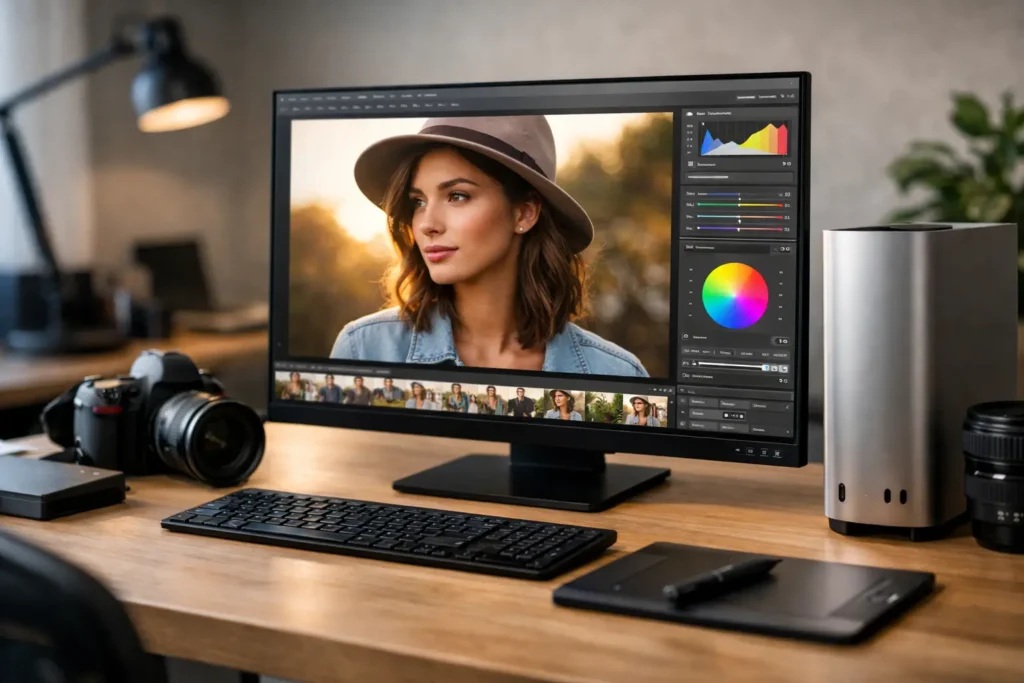
A camera upgrade can be exciting. Replacing a computer that stalls while building previews, freezes during an export, or runs out of room in the middle of a client job is usually not. The best computer for photo editing is not simply the one with the most impressive specification sheet. It is the one sized correctly for your editing software, camera files, storage habits, and the work you need to deliver.
For some photographers, a well-configured laptop is the right answer. For a studio processing thousands of RAW files, panoramic composites, layered advertising work, or AI-assisted masking, a desktop workstation may save meaningful time every day. No guessing is necessary when the system is built around the way you actually work.
What Makes the Best Computer for Photo Editing?
Photo editing performance comes from several components working together. A fast processor helps Lightroom Classic generate previews and export batches. Adequate memory keeps Photoshop responsive when a file has dozens of layers. Fast storage reduces the wait for catalogs, cache files, and large image folders. A capable graphics card can improve display acceleration, AI features, and certain filters.
The common mistake is to focus on one part, usually the processor, while overlooking the rest. A high-end CPU paired with too little RAM or a small, slow drive can still create a frustrating editing experience. The right configuration is balanced, dependable, and expandable where your workflow calls for it.
Start with the software you use
Adobe Lightroom Classic, Photoshop, Capture One, DxO PhotoLab, ON1 Photo RAW, and similar applications do not stress hardware in exactly the same way. Lightroom often benefits from CPU speed, RAM, and fast catalog and cache storage. Photoshop can demand substantial memory when working on high-resolution layered files, smart objects, panoramas, focus stacks, or extensive retouching. Capture One users may place particular value on responsive previews and GPU acceleration.
AI-powered tools have changed the conversation as well. Subject selection, denoise functions, generative edits, and masking features can place more demand on the graphics card and system memory than traditional adjustments. If these tools are a central part of your work, choose hardware for where your workflow is going, not only where it is today.
Choose a Processor for Real Editing Work
A modern multi-core processor is the foundation of a photo editing system, but more cores are not always the whole story. Many editing tasks respond well to strong single-core performance, while exports, preview generation, and batch processing can take advantage of additional cores.
For a photographer working with standard RAW files and occasional Photoshop projects, a current midrange to upper-midrange processor is often plenty. For high-volume wedding photography, commercial work, large-format files, or regular batch exports, moving to a higher-performance CPU can make the workday noticeably smoother.
It depends on the time value of performance. If you export a few dozen images each week, shaving a minute off an export may not justify a major investment. If your studio delivers thousands of edited images on deadline, those minutes add up quickly. A system should support your revenue-generating work without forcing you to pay for horsepower that sits unused.
How Much RAM Do You Need for Photo Editing?
Memory is one of the easiest ways to prevent slowdowns. When a computer runs short on RAM, it begins using storage as temporary memory. Even with a fast solid-state drive, that is slower than having enough physical memory available from the start.
For lighter photo work, 16GB can function, but it leaves little room for large files, modern operating systems, browser tabs, cloud sync, and multiple creative applications open at once. For most serious photographers, 32GB is a practical baseline. It provides comfortable headroom for RAW processing, Photoshop editing, and everyday multitasking.
Consider 64GB or more if you routinely work with medium-format images, large panoramas, extensive layers, focus stacks, big composite files, or photo and video projects on the same machine. More memory will not make every slider adjustment faster, but it can prevent the slow, unpredictable behavior that interrupts a complicated project.
Storage Should Protect Speed and Your Images
Photo editing systems need more than one place to save files. The best approach separates active work from long-term storage and backup. At minimum, a fast internal NVMe solid-state drive should hold the operating system, applications, Lightroom catalog, previews, cache files, and current projects. This keeps the files you touch all day close to the fastest storage in the system.
A second internal drive or dedicated external storage can hold active image libraries, depending on their size and how often they are accessed. Completed work, archives, and source files may belong on high-capacity local storage, a NAS appliance, or other managed storage designed for growth.
Capacity matters more than buyers sometimes expect. RAW files grow quickly, especially with higher-resolution cameras and burst shooting. Photoshop temporary files can also consume a surprising amount of free space. A nearly full drive performs poorly and leaves little room for scratch disks, catalogs, or incoming projects. Planning storage correctly from the beginning avoids a rushed cleanup when a deadline is near.
Just as important, storage is not backup. A working drive can fail, be accidentally deleted, or become corrupted. Keep your active images protected with a backup plan that includes more than one copy and more than one location when the work is business-critical.
Do You Need a Dedicated Graphics Card?
Not every photo editor needs a high-end graphics card. For basic photo corrections and moderate RAW editing, integrated graphics or an entry-level dedicated GPU may be enough. The answer changes when you use GPU-accelerated tools frequently, edit large files at high resolution, drive multiple high-resolution displays, or combine photography with video, 3D, or AI work.
A dedicated GPU can make the interface feel more responsive and improve performance in supported filters, denoise processes, masking, and display tasks. But spending heavily on a graphics card while compromising on RAM, fast storage, or display quality is rarely the best move for a photo-only workflow.
The goal is not to buy the largest GPU available. It is to select one with the right amount of video memory and compatible drivers for the applications you rely on. Professional work benefits from stability as much as peak benchmark numbers.
The Display Is Part of the Editing System
You cannot edit color confidently on a display that changes tone and brightness from one session to the next. A quality monitor with good color coverage, consistent uniformity, and calibration support is essential for photographers delivering work for print, web, or client approval.
Screen resolution is a personal and practical choice. A larger 4K display provides useful space for tool panels, full-size previews, and side-by-side comparisons. Some photographers prefer dual displays, using one for the image and the other for their catalog, controls, or reference material. A laptop can be an excellent mobile editing platform, but pairing it with a calibrated external monitor at your desk often improves comfort and color accuracy.
Calibration should be treated as part of the workflow, not an afterthought. Even an excellent panel benefits from regular calibration, particularly when print matching matters.
Desktop or Laptop for Photo Editing?
A laptop is the better choice when you edit on location, travel for assignments, meet clients outside the studio, or need a single machine that can move with you. Look for a high-quality display, enough RAM that cannot become a limitation later, fast internal storage, and ports that fit your card readers, drives, and displays.
A desktop offers more performance per dollar, easier upgrades, more storage options, quieter sustained operation, and greater flexibility for multiple displays and peripherals. It is often the stronger long-term choice for photographers with a fixed workspace, growing archives, or demanding production schedules.
Many professionals use both: a laptop for field work and review, then a desktop workstation for large catalog management, retouching, exports, and archival tasks. That setup only makes sense if file organization and backup are planned carefully. Otherwise, moving projects between machines can create confusion instead of convenience.
Build for the Workflow You Will Have Next Year
The right photo editing computer should leave room for growth. That may mean additional memory capacity, unused storage bays, room for another high-speed drive, or a graphics card that supports new AI-assisted features. It also means choosing proven components, proper cooling, and a system that has been tested as a complete machine rather than assembled as a collection of parts.
At Sandia Computers, the conversation starts with your actual work: the applications you use, the camera files you handle, the size of your library, the displays you need, and the deadline pressure you face. A purpose-built system removes the component roulette and gives you a team that actually shows up after delivery.
Your editing computer should disappear into the background while you work. When previews build quickly, files open without hesitation, colors stay trustworthy, and your images are protected, you can spend less time managing technology and more time making photographs worth delivering.