
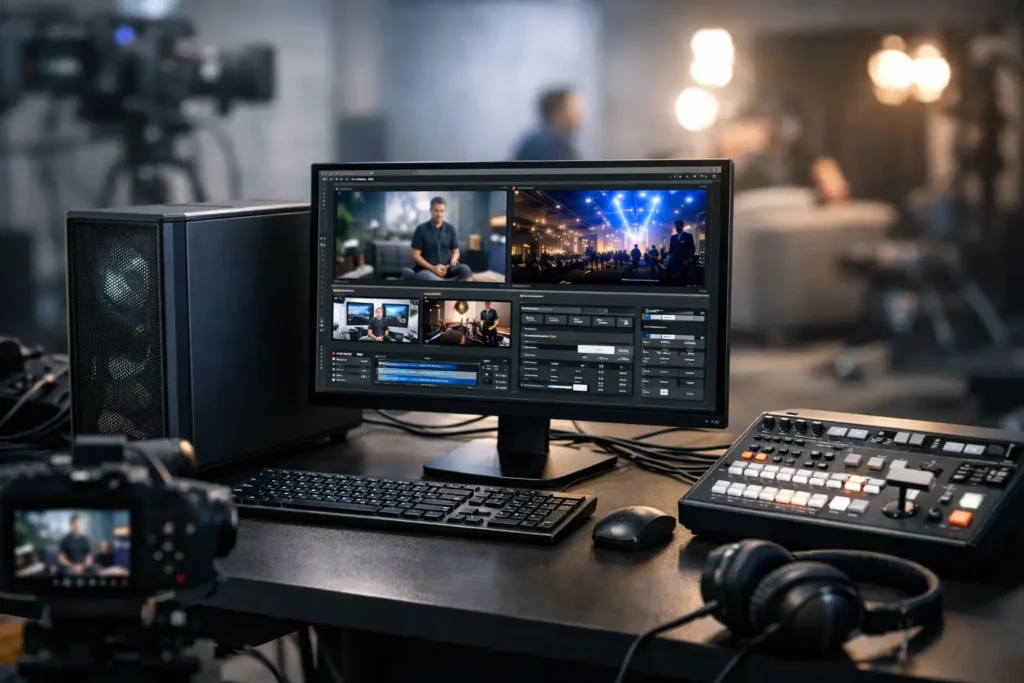
A dropped frame during a quarterly town hall is not just a technical nuisance. It can interrupt a speaker, lose an audience, and leave your production team troubleshooting in public. The right computer for live video production is built around preventing that moment, with enough performance headroom for the work happening before, during, and after the broadcast.
Live production puts several demanding jobs on one machine at the same time. It may ingest camera feeds, switch scenes, play video clips, render lower thirds, run audio processing, encode a stream, record a high-quality local copy, and communicate with remote guests. A computer that looks powerful on a retail spec sheet can still struggle when those tasks compete for the same resources.
The goal is not to buy the most expensive hardware available. It is to build a system that fits your production software, signal path, resolution, recording needs, and tolerance for downtime. No guessing, and no paying for components that do not improve your actual workflow.
What a Computer for Live Video Production Must Do
Live production systems are different from editing workstations. An editor can wait for a render or restart an application after a crash. A live producer usually cannot. The system needs to respond immediately when a technical director changes scenes, a presenter cues a clip, or a stream platform changes its connection behavior.
That makes balance more valuable than one impressive component. A high-end graphics card cannot compensate for too little memory, a slow storage drive, an overloaded processor, or an unstable capture device connection. The complete system has to move video, graphics, audio, and data reliably without creating a bottleneck.
Your software matters from the beginning. A simple one-camera webcast using streaming software has different requirements than a multi-camera production using a hardware switcher, NDI sources, replay playback, virtual sets, and simultaneous streaming to several destinations. Production applications also vary in how effectively they use processor cores, graphics acceleration, video encoding engines, and system memory.
Before choosing parts, define what happens in a typical show and what may happen six months from now. That conversation often reveals requirements that are easy to miss, such as recording isolated camera feeds, sending confidence-monitor outputs, running teleprompter software, or supporting a second operator.
Start With the Signal Flow, Not the Spec Sheet
A practical system design begins by mapping every signal that enters and leaves the computer. Count cameras, capture devices, network video feeds, displays, audio interfaces, USB peripherals, storage targets, and network connections. Then identify which of those connections must operate at the same time.
A producer using two HDMI cameras and a USB microphone has a relatively straightforward setup. A venue, church, school, or corporate media team may need multiple SDI inputs, audio from a digital console, playback from shared storage, graphics on a separate display, and a dedicated stream connection. Those are not simply more cables. They affect motherboard expansion, PCIe lane availability, USB controller capacity, network hardware, and cooling.
Capture hardware deserves special attention. A system needs the right slots and bandwidth for professional capture cards, not just an open physical slot that happens to fit the card. External capture devices can be a good choice for portable workflows, but several high-bandwidth USB devices connected to the same controller can create unpredictable behavior.
Network video adds another layer. NDI and other IP-based workflows can reduce cabling, but they shift part of the workload to the network and processor. A dependable wired connection, suitable network switches, and enough network bandwidth matter as much as the computer itself. Wi-Fi is useful for administration and communication, not as the foundation for a mission-critical production feed.
Choose Processing Power for Real-Time Work
The CPU manages much of the coordination that makes a show run properly. It handles software operations, scene changes, certain effects, audio tasks, network activity, and encoding work that is not offloaded elsewhere. For live video, strong per-core performance is often as important as a large core count because many time-sensitive tasks do not scale perfectly across every available core.
More cores still help when you are running multiple applications, producing complex scenes, recording, streaming, and managing graphics simultaneously. The best choice depends on whether the machine is primarily a live switcher, a graphics and playback station, a dedicated encoder, or an all-in-one production workstation.
Do not select a processor based only on its gaming reputation or maximum benchmark score. Sustained performance under load is what matters. A long event can expose cooling limitations that do not appear in a short test. Proper cooling and a quality power supply help the processor maintain expected performance without excessive fan noise or heat-related slowdowns.
Graphics Hardware Has a Specific Job
A capable GPU can accelerate compositing, effects, virtual backgrounds, scaling, color processing, and graphics-heavy scenes. It may also provide efficient hardware encoding for streaming platforms, which can reduce pressure on the CPU. This is particularly helpful when you need to stream and record at the same time.
The right graphics card is not always the largest one. GPU selection should account for your software’s acceleration support, the number and resolution of displays, the complexity of your scenes, and the amount of video memory required. A production built around lower thirds and camera switching needs less graphics power than one using 4K assets, animated overlays, real-time keying, or virtual production elements.
Compatibility matters here. Drivers, capture cards, and production applications need to work together predictably. A system that is tested as a complete configuration is easier to trust than a collection of individually well-reviewed parts.
Memory and Storage Are Where Many Builds Fall Short
System memory gives your production software room to work while the operating system, browser-based control panels, communications tools, graphics applications, and background services remain active. For modest HD productions, 32GB may be sufficient. For larger projects, multiple applications, higher-resolution assets, or heavier graphics workloads, 64GB provides a more comfortable margin. More may be appropriate for specialized workflows, but capacity should follow the workload rather than a generic rule.
Storage needs separate planning because live production creates different kinds of data. Your operating system and applications benefit from a fast solid-state drive. Active media, replay files, graphics assets, and local recordings can require a separate fast drive so heavy recording activity does not interfere with normal system responsiveness.
Long events generate large files quickly. A high-bitrate master recording, ISO recordings of separate cameras, and program files can fill storage faster than expected. Plan for both performance and capacity, then decide where content goes after the event. A NAS, server, or backup system may be the right next step for teams that need shared access, retention, and dependable recovery.
Avoid treating one large drive as the entire storage strategy. A drive failure, accidental deletion, or incomplete file transfer can turn a successful event into a costly problem. Recording to more than one destination may be worthwhile when the content cannot be recreated.
Reliability Is a Design Requirement
Live video production is unforgiving because every weak point is exposed in real time. Reliable components, stable drivers, thoughtful cable management, and adequate cooling all contribute to a calmer control room. So does avoiding unnecessary software on a dedicated production machine.
A clean, purpose-built setup is generally easier to support than a computer that also serves as an office desktop, gaming machine, and testing environment. Keep operating system updates, graphics drivers, production software, capture devices, and streaming settings under change control. Test updates before a major show rather than discovering a conflict at call time.
Power protection is also part of the conversation. An uninterruptible power supply can provide enough time to ride through a brief outage or shut down safely. It will not replace a backup production plan, but it can prevent an avoidable interruption and protect connected equipment.
For higher-stakes events, redundancy may be the right answer. That could mean a backup streaming encoder, a second recording path, spare cables and adapters, or a prepared backup computer. The level of redundancy should reflect the cost of failure. A weekly internal webinar and a paid national broadcast should not be designed to the same risk standard.
Build for the People Running the Show
The best technical configuration still needs to be workable for the people who use it. Front-panel connections may matter for a mobile team. Quiet operation may matter in a small studio. Rack mounting, remote management, expansion space, and multiple display outputs may matter for an organization that expects its production needs to grow.
This is why a consultation should cover more than a budget and a software name. Bring the full picture: camera count, resolutions, frame rates, capture hardware, live graphics, audio routing, stream destinations, recording format, storage needs, and the consequences if the system fails. Sandia Computers uses that information to design and test purpose-built systems around the work, not a one-size-fits-all parts list.
A good live production computer should disappear into the background once the show starts. Give it the right headroom, test it under realistic conditions, and keep a clear support plan in place. When the countdown reaches zero, your team should be focused on the audience, not the task manager.