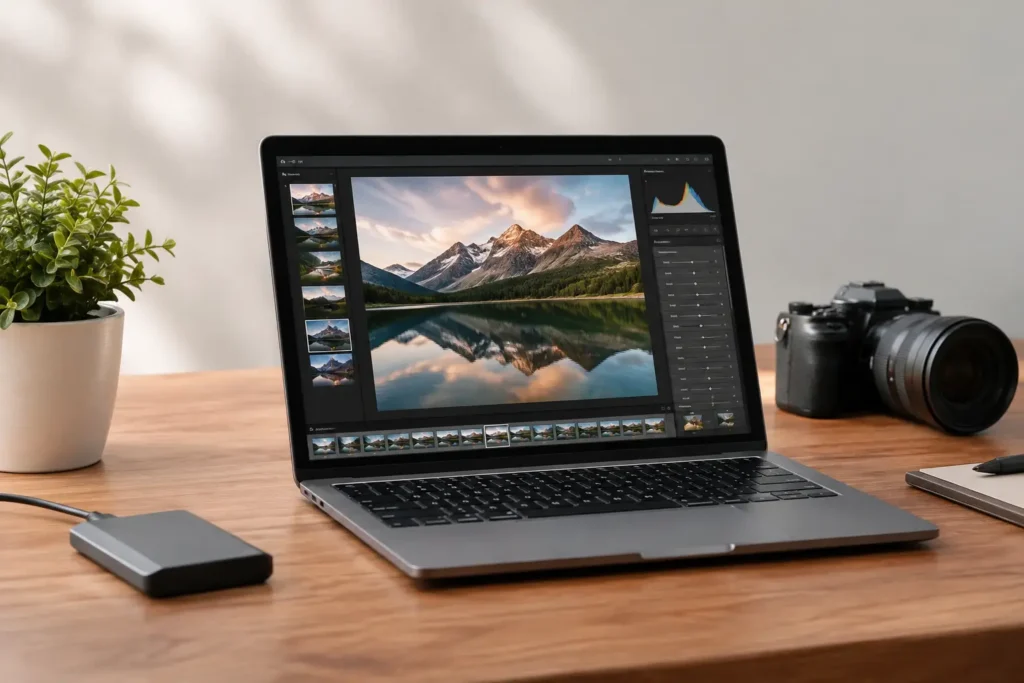
A laptop that feels quick while adjusting one RAW file can become frustratingly slow when it has to import 2,000 wedding images, build previews, run AI masks, and export a client gallery before deadline. That is why the best laptops for Lightroom Classic are not simply the models with the biggest advertised processor number. They are systems balanced around the way you actually shoot, organize, edit, and deliver photographs.
For a hobbyist working on a modest catalog, a well-configured midrange laptop may be the sensible answer. For a working photographer, studio, or production team handling high-resolution RAW files and tight turnaround times, memory, storage speed, cooling, and display quality can matter just as much as processor performance. No guessing is necessary when the purchase starts with the workflow.
What the Best Laptops for Lightroom Classic Need
Lightroom Classic puts different demands on a computer at different stages of the job. Importing images, generating previews, browsing a large catalog, editing in Develop, using AI-powered tools, and exporting finished files do not all lean on the same component. A good Lightroom laptop avoids a single weak point that slows down the rest of the system.
Start with a current high-performance processor. Lightroom Classic benefits from strong single-core speed during many interactive editing tasks, while multiple cores help with exporting, preview generation, and batch work. A modern upper-tier mobile processor with at least eight performance-focused cores is a practical starting point for professionals. More cores are useful, but do not choose a slower processor architecture just to get a larger core count.
Memory is often where a laptop either stays responsive or starts relying too heavily on its storage drive. For lighter work with a limited catalog, 16GB can function. For most paid photography workflows, 32GB is the better baseline. It provides breathing room for Lightroom Classic, Photoshop, browser-based client tools, backup software, and the operating system at the same time. Photographers who work with very large catalogs, high-megapixel cameras, panoramas, HDR merges, or Photoshop files with many layers should consider 64GB.
Storage should support the entire workflow
A fast NVMe solid-state drive makes a noticeable difference in day-to-day use. Lightroom Classic catalog access, preview files, cache data, imports, and exports all benefit from fast local storage. A 1TB internal drive is a reasonable starting point, but it can fill quickly once active jobs, previews, and Photoshop scratch files accumulate.
Many photographers get better results by separating active work from long-term storage. Keep the operating system, applications, Lightroom catalog, preview files, and current projects on the internal SSD. Archive completed jobs to external storage or a network-attached storage system with a tested backup plan. The right arrangement depends on whether you travel frequently, share files with a team, or need immediate access to years of work.
Do not overlook ports. SD or CFexpress card-reader needs, fast USB connections, external display support, and high-speed networking can affect how efficiently you move from camera card to final delivery. An adapter chain may work in a pinch, but a purpose-built system should fit the equipment you use every day.
Graphics matter more for some photographers
Lightroom Classic uses graphics acceleration for parts of the Develop module, high-resolution displays, AI selections, denoise work, and other GPU-assisted features. An integrated graphics solution can be adequate for basic editing, especially on a well-balanced modern laptop. It is not always the best choice for professionals who need consistently quick results from AI masking, subject selection, denoise, or demanding multi-application workflows.
A dedicated graphics processor with sufficient video memory is a worthwhile investment for photographers who edit high-resolution files, use dual displays, or regularly move images into Photoshop. It also makes more sense if the same laptop handles video editing, 3D work, or AI-assisted creative applications. More graphics power brings added heat, weight, fan noise, and cost, so it should match real work rather than a spec-sheet contest.
Choose a Display You Can Trust
A fast laptop does not help much if the screen makes it difficult to judge color, shadow detail, or skin tones. Look for a high-quality IPS or OLED display with strong color coverage, good brightness, and a resolution that gives you enough room for Lightroom Classic panels without making interface elements uncomfortably small.
For serious photo work, a display that covers close to the full Adobe RGB or DCI-P3 color space is preferable to a basic office-oriented panel. The best option still needs calibration. Even a very good factory-calibrated display can shift over time, and consistent color requires a hardware calibration tool and a repeatable process.
Screen size is a working-style decision. A 14-inch laptop is easier to carry to shoots, client meetings, and travel assignments. A 16-inch model provides a more comfortable workspace for long editing sessions and can often support more powerful components. Many photographers choose a portable 14-inch system and connect it to a calibrated external monitor in the studio. Others prefer a 16-inch laptop that can serve as the primary workstation when traveling.
Configurations That Match Common Lightroom Workflows
For personal photography, travel, and occasional client work, choose a current performance-class processor, 16GB to 32GB of memory, a 1TB SSD, and a color-accurate display. Dedicated graphics are helpful but not mandatory if you do limited AI editing and do not run other demanding creative software.
For wedding, portrait, real estate, and commercial photographers, 32GB of memory, a 1TB or 2TB SSD, and a dedicated GPU are usually a more comfortable fit. This configuration is designed for large imports, multiple active catalogs, AI masks across many images, Photoshop round-trips, and deadline-driven exports. Fast external storage and a dependable backup routine should be part of the purchase decision, not an afterthought.
For high-volume studios and hybrid photo-video creators, step up to 64GB of memory, a higher-end processor, dedicated graphics with ample video memory, and at least 2TB of fast internal storage. These users often need the laptop to remain responsive while Lightroom Classic, Photoshop, video software, cloud synchronization, and team communication tools are all open. A larger chassis with capable cooling is usually worth carrying when it prevents performance from dropping during sustained exports or rendering.
Avoid the Common Lightroom Laptop Mistakes
The lowest-cost laptop with a fast processor is rarely the best value if it has only 16GB of non-upgradable memory, a small SSD, and a low-quality display. Those limitations tend to appear after the return window has closed, when a catalog has grown and client work has become more demanding.
Another common mistake is buying strictly for portability. Very thin systems can be excellent for culling and modest edits, but constrained cooling may reduce performance during long exports, batch preview generation, and AI processing. Battery life also changes dramatically when dedicated graphics are active. The right laptop is the one you will actually carry while still meeting the performance expectations of a full workday.
Finally, plan for data protection. A laptop is not an archive and should not be the only location for client images. Use a backup approach that protects current work, completed jobs, and the Lightroom catalog itself. That may include external backup drives, a NAS appliance, offsite copies, or a combination that matches the value and volume of your files.
A Lightroom Classic laptop should feel like a dependable part of your camera kit, not another problem to troubleshoot at the end of a long shoot. If the choices feel crowded, Sandia Computers can help map your catalog size, camera files, software, storage, and travel needs to a system built and tested for the way you work.