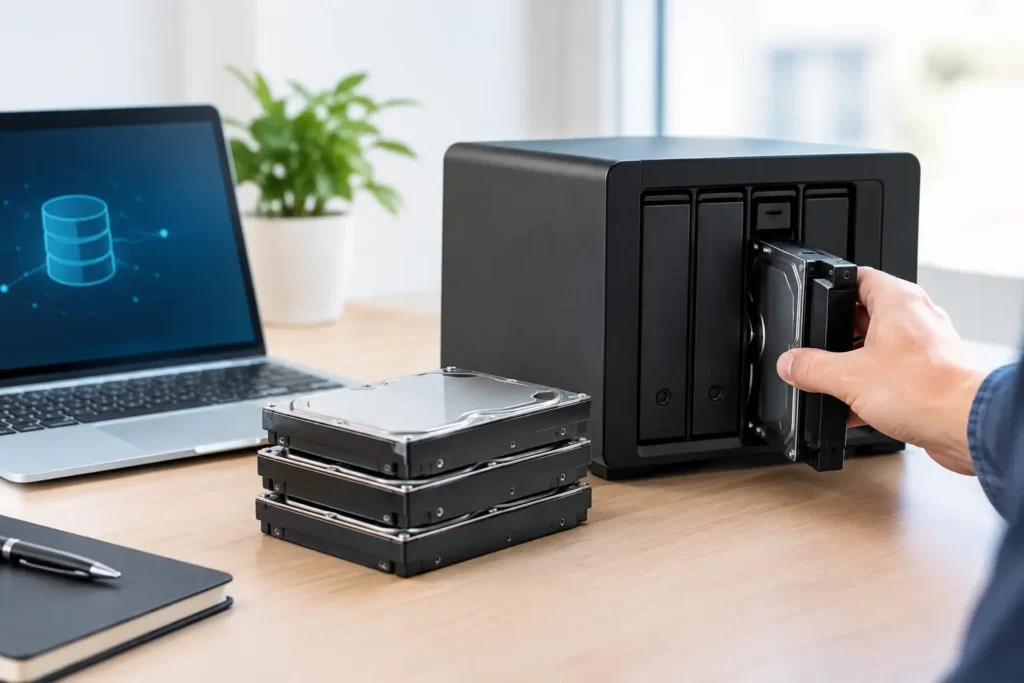
A failed drive is inconvenient when it holds a few personal files. When it holds an active video project, CAD archive, research dataset, or the shared files your team needs before noon, it can stop work cold. Knowing how to choose RAID levels helps you plan for drive failures without buying storage that is slower, smaller, or more expensive than your workflow requires.
RAID is not a single feature with a simple good-better-best ranking. It is a way of combining multiple drives to prioritize different outcomes: speed, usable capacity, protection from drive failure, and sometimes all three in measured amounts. The right answer depends on what the system is doing and how much downtime your work can tolerate.
Start With the Risk You Need to Manage
Before comparing RAID 1, RAID 5, or RAID 10, define the data and the consequence of losing access to it. A workstation holding source footage may need fast, high-capacity storage during an edit. A NAS serving a small office may need to remain available after one or two drives fail. A server supporting an application database may need strong write performance and predictable recovery behavior.
Also separate uptime from data protection. RAID helps keep data available when a drive fails, but it does not protect against accidental deletion, file corruption, ransomware, theft, fire, controller failure, or a mistaken overwrite. If a file is deleted from a RAID array, the deletion is usually copied across the array immediately.
RAID Is Not a Backup
A reliable storage plan has both RAID and backups. RAID reduces interruption from a hardware failure. Backup provides a separate recoverable copy when the problem is larger than one failed drive. For critical work, that typically means keeping at least one backup separate from the primary system and, when appropriate, one copy offsite or otherwise isolated.
This distinction matters when budgeting. Spending every dollar on a large fault-tolerant array while skipping backup storage can leave a business exposed to the failures RAID cannot solve.
How to Choose RAID Levels by What They Do
Each RAID level uses drives differently. Capacity figures below are simplified, but they provide a useful starting point when all drives in the array are the same size.
RAID 0: Maximum Speed, No Drive-Failure Protection
RAID 0 splits data across two or more drives. This can improve throughput and gives you the full combined capacity of the drives. Two 4 TB drives provide about 8 TB of usable space.
The trade-off is serious: if one drive fails, the entire array is lost. RAID 0 can make sense for temporary scratch storage, cache volumes, or other data that can be recreated quickly. It should not be the only location for active project files, business records, or irreplaceable media.
RAID 1: Simple Mirroring for Smaller Critical Sets
RAID 1 writes the same data to two drives. If either drive fails, the other still contains the data. Two 4 TB drives provide about 4 TB of usable capacity.
This is a straightforward choice for operating system drives, small business file shares, or critical data volumes where simplicity matters more than maximizing capacity. Read performance can be good, but RAID 1 does not turn two drives into a large high-speed production volume. You are trading half of the raw capacity for redundancy.
RAID 5: Capacity Efficient With One-Drive Protection
RAID 5 uses parity information distributed across at least three drives. It can survive one drive failure, and its usable capacity is roughly the total capacity of all drives minus one drive. Four 12 TB drives, for example, provide roughly 36 TB of usable capacity before formatting differences.
RAID 5 is often attractive for file storage because it uses capacity efficiently. However, parity calculations can reduce write performance, especially with small random writes. Rebuilding a large RAID 5 array after a drive failure can also take substantial time, placing additional work on the remaining drives. For large arrays or data that cannot tolerate a second failure during a rebuild, RAID 6 or RAID 10 is often the safer conversation.
RAID 6: More Protection for Large-Capacity Arrays
RAID 6 is similar to RAID 5 but uses enough parity to survive two drive failures. It requires at least four drives, and usable capacity is roughly the total minus two drives. Four 12 TB drives provide roughly 24 TB of usable space.
This level is often a practical fit for larger NAS appliances, archive storage, and shared data where capacity matters but replacement and recovery time could be significant. The cost is lower usable capacity and potentially slower writes than RAID 5. For data that is primarily read, stored, and protected rather than constantly rewritten, that trade-off can be worthwhile.
RAID 10: Strong Performance and Straightforward Recovery
RAID 10 combines mirroring and striping. It requires at least four drives and provides roughly half of the total raw capacity. Four 12 TB drives provide about 24 TB usable.
RAID 10 is a strong choice for busy workstations, production servers, databases, virtual machines, and active project storage. It offers excellent read and write performance without the parity overhead of RAID 5 or RAID 6. It can also recover more predictably because it rebuilds from a mirror rather than recalculating parity across the entire array.
The primary drawback is cost per usable terabyte. If capacity is the top priority, RAID 6 may provide more efficient protection. If responsive performance and reduced disruption are the priority, RAID 10 is frequently worth the additional drives.
Match the Array to the Workflow
A photographer or editor working from a local workstation may use fast NVMe storage for current projects, then move completed work to a larger RAID 6 NAS with an independent backup plan. The workstation does not necessarily need every terabyte of archive storage at maximum speed.
A video production team sharing large media files needs more than a RAID level. Network speed, the number of simultaneous editors, drive type, cache design, and NAS processor all affect the experience. A RAID 6 array may protect the media well, but a 1 Gigabit network can still become the bottleneck. The storage design has to match the full path from the drives to the editing workstation.
For virtual machines, databases, or engineering applications with frequent small writes, RAID 10 is commonly the better fit. These workloads can expose the write penalty of parity RAID. On the other hand, a department storing completed scans, finished renders, reference material, or long-term project archives may benefit more from RAID 6 capacity and two-drive fault tolerance.
Consider Rebuild Time, Not Just Failure Tolerance
Large drives have changed the RAID conversation. Rebuilding an array can take many hours or even days depending on drive size, workload, controller, and system design. During that period, the array may perform more slowly, and the remaining drives are under additional stress.
That does not make RAID 5 automatically wrong. A properly sized RAID 5 array with quality drives, monitoring, tested backups, and a prompt replacement process can still be appropriate for certain workloads. But it does mean one-drive protection deserves closer scrutiny as capacities grow.
Ask how quickly a failed drive can be detected, who receives the alert, whether a compatible replacement is available, and how the system behaves during a rebuild. A spare drive on hand can be more valuable than a theoretical feature that nobody is watching.
Hardware Choices Matter Too
RAID can be handled by a dedicated hardware controller, software built into the operating system, or a NAS platform. The best approach depends on the system, operating system, support requirements, and the need to move data to another machine in an emergency.
Use matched drives whenever possible. In a traditional RAID array, the smallest drive generally sets the usable capacity for every drive in that array. Mixing a 16 TB drive with several 12 TB drives does not usually produce a 16 TB contribution from the larger drive.
Enterprise or NAS-rated drives may be appropriate for systems that run continuously, handle multiple users, or contain critical business data. SSD arrays can offer exceptional speed, but endurance, heat, power-loss protection, and cost per terabyte must be part of the design. No RAID level can compensate for poorly matched hardware or an undersized system.
Make the Decision Before the Data Arrives
The best RAID design is the one that fits the real workload before the array fills up. Start with the files you create, how quickly they must move, how long they need to stay online, and how much downtime is acceptable. Then choose the RAID level, networking, backup method, and replacement plan around those answers.
If the choice still feels unclear, that is normal. Storage decisions affect performance, recovery, and budget at the same time. A short workflow-focused conversation with a system builder such as Sandia Computers can turn those requirements into a storage plan that is done right the first time.