
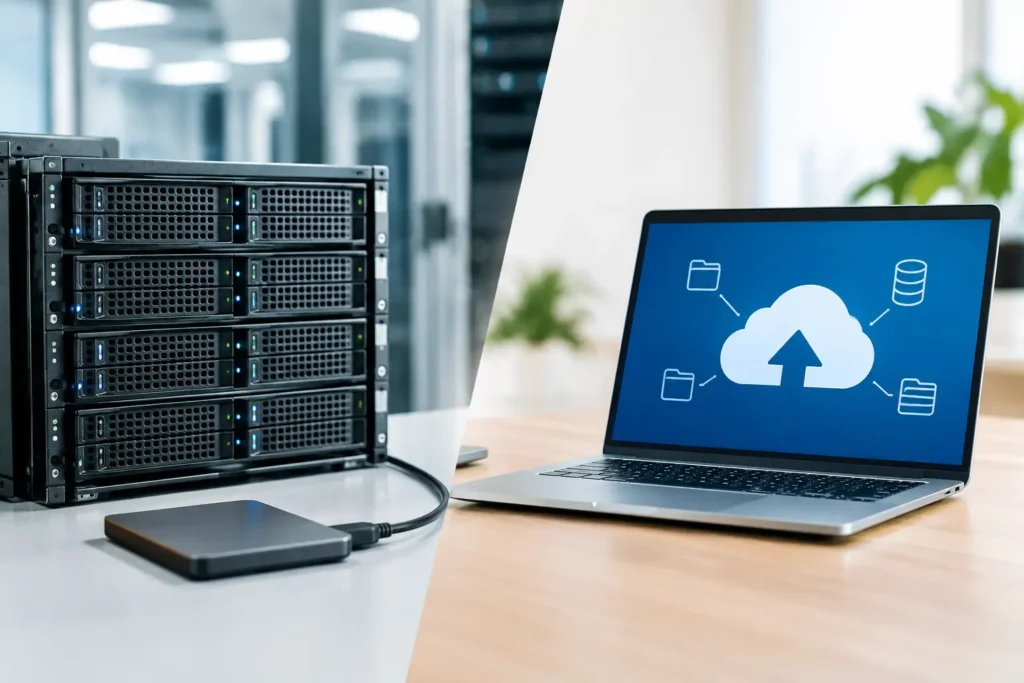
A full RAID array, a recent project folder, and a green backup status can create a false sense of security. Then a failed controller, ransomware event, fire, theft, or accidental deletion exposes the gap. When comparing on premises versus cloud backup, the right answer is rarely about choosing one location forever. It is about deciding how quickly you need to recover, what data cannot leave your control, and what an interruption would cost your organization.
For a photographer with several terabytes of RAW files, a video team managing active productions, or an engineering department protecting CAD and GIS data, backup is not a background IT task. It is part of keeping billable work, institutional knowledge, and customer commitments intact.
On Premises Versus Cloud Backup: The Real Difference
On-premises backup stores protected copies on hardware you own and operate at your office, studio, lab, or data center. That might be a NAS appliance, backup server, removable drives, or a dedicated storage system. Your team controls the equipment, the network connection, the retention schedule, and physical access to the data.
Cloud backup sends encrypted copies to a provider’s remote data centers through the internet. You pay for storage and, depending on the service, may also pay for retrieval, data transfer, or advanced security and retention features. The provider maintains the storage infrastructure while your organization sets policies for what gets backed up and how long it stays available.
Both approaches can be reliable. Neither automatically protects data just because it exists. A backup system must be sized for the workload, configured correctly, monitored, and tested through real restores. That is where many otherwise sound plans fall short.
Where On-Premises Backup Makes Sense
Local backup is usually the fastest recovery option. If a workstation loses a project folder or a server needs to be restored, a properly configured local backup appliance can move data over your internal network instead of waiting on an internet connection. For large media, research, photogrammetry, and visualization datasets, that difference can be measured in hours or days.
It also gives organizations direct control. Some government, education, healthcare, and research environments have specific data-handling requirements. Others simply need to know exactly where sensitive footage, design files, client assets, or internal records reside. An on-premises system can support that level of oversight, especially when it is built with appropriate access controls, encryption, redundant storage, and documented procedures.
The trade-off is responsibility. The hardware needs power protection, physical security, monitoring, replacement planning, and enough capacity to retain multiple versions of changing files. A NAS with mirrored drives is helpful, but RAID is not a backup. RAID keeps a system running through certain drive failures. It does not protect against deletion, corruption, ransomware, or a building-level disaster.
Local systems can also share the same risk as the production environment. If the office is flooded, burglarized, or hit by a power event that damages connected equipment, the primary storage and its backup may be lost together. Keeping backup drives in the same room as the server is convenient, but convenience is not disaster recovery.
Best fit for fast restores and large files
On-premises backup is especially valuable when teams work with multi-terabyte projects, have limited upload bandwidth, or need to restore systems quickly to meet deadlines. A post-production studio cannot always wait for a large camera archive to download. A small business may not be able to operate for days while critical server data returns over the internet.
For these teams, local backup should usually be part of the plan, not the entire plan.
Where Cloud Backup Makes Sense
Cloud backup shines when distance matters. A protected copy stored in another geographic location can survive events that affect your building, equipment, or local network. It also reduces the need to transport drives offsite manually and can make retention easier to manage across multiple locations.
For distributed teams, cloud backup can be practical because it provides a common offsite destination. Employees working from home, satellite offices, and field locations can be included in a consistent protection plan, assuming the service supports their devices and the available internet connection can handle the workload.
Cloud services can also offer features that are difficult for small teams to maintain on their own, such as immutable backup copies, multi-region storage, retention lock policies, and managed infrastructure. Immutability is particularly useful in ransomware planning because it can prevent backups from being altered or deleted for a defined period.
Still, the cloud is not magic storage. Uploading an initial backup of tens of terabytes can take a long time. Restoring that same volume can be equally slow, especially if your connection is shared with normal production traffic. Some cloud services charge based on the amount stored, while others add retrieval or egress fees. Those costs need to be understood before a major recovery, not after it.
Best fit for offsite protection and distributed teams
Cloud backup is a strong choice when offsite resilience is the priority, data volumes are manageable, and internet connectivity is dependable. It can be an excellent second copy for creative assets, business records, project files, and server data that would be difficult or impossible to recreate.
It is less ideal as the only recovery method for organizations that need to bring back very large datasets immediately.
The Hybrid Approach Is Often the Practical Answer
For most professional environments, the better question is not on-premises or cloud. It is how to combine them without creating a system no one has time to manage.
A hybrid design keeps a local backup copy for fast day-to-day recovery and an encrypted offsite copy for disaster protection. This aligns with the familiar 3-2-1 backup principle: maintain at least three copies of important data, stored on two different types of media, with one copy kept offsite. For higher-risk environments, an additional immutable or offline copy adds protection against ransomware and administrative mistakes.
Consider a video production company with 40TB of active media. Its local backup appliance may protect project storage every night and allow an editor to recover a deleted sequence quickly. A cloud backup can then protect completed projects, accounting records, project files, and selected active data against a site-wide loss. The company may not need every camera original available from the cloud within minutes, but it does need a clear plan for which data comes back first.
That priority is the foundation of a workable recovery strategy. Start by identifying critical systems and files, then set a recovery time objective and recovery point objective. Recovery time objective means how long you can be without a system. Recovery point objective means how much recent work you can afford to lose. A payroll database might need hourly protection and rapid recovery. Archived footage may need reliable preservation but can tolerate a slower restore.
Questions to Answer Before You Buy Backup Hardware or Storage
The right backup design begins with your workflow, not a storage capacity number. Determine how much data you have now, how quickly it is growing, and how much changes each day. A 20TB archive and a 20TB active editing environment place very different demands on backup storage and network performance.
Next, look honestly at your recovery requirements. Can your team wait two days for a restore? Do you need one workstation back, an entire server, or an entire office? Are you protecting applications, virtual machines, databases, shared storage, endpoint computers, or all of the above? These answers influence the backup software, appliance performance, network design, and amount of local storage required.
Security also deserves practical attention. Use separate backup credentials, limit administrative access, encrypt data in transit and at rest, and protect management interfaces with multifactor authentication where available. Keep backup systems patched, but avoid assuming a backup is safe because it is connected. If ransomware can reach it with the same permissions as production data, it may be at risk too.
Finally, test restores. A backup report only proves that a job ran. It does not prove you can open the recovered project, boot the restored server, or meet the recovery window your organization expects. Schedule test restores before a crisis, document what happened, and correct weak points while there is time.
Build for Recovery, Not Just Storage
The most expensive backup is the one that cannot restore the files you need when you need them. A low-cost external drive may be enough for a single laptop with modest data, but it is not a complete answer for a studio, department, or business with shared assets and deadlines. Likewise, a cloud account alone may not meet the needs of a team moving large files all day.
Sandia Computers helps customers match backup hardware, storage capacity, network performance, and recovery goals to the way they actually work. No guessing, no oversized system sold for its own sake, and no confusing component list without a reason behind it.
Start with the next failure you can realistically imagine: a deleted project, a failed server, ransomware, or loss of your location. If your team can clearly explain how it would recover, who would do the work, and how long it would take, you are building a backup plan that can support the work you depend on.